SAAM
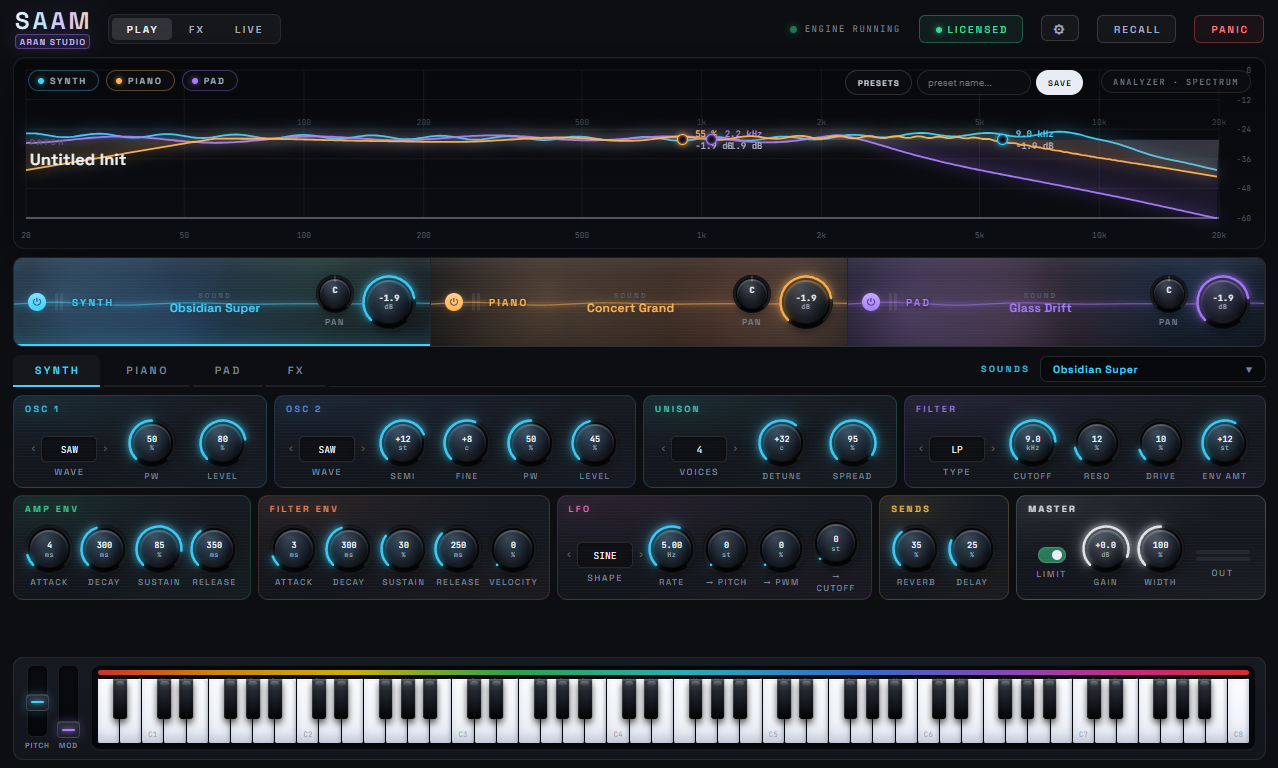
A 3-layer synthesizer — a synth, a piano and a pad in one instrument. Play them separately, or stack all three under one key.


Highlights
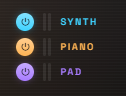
A synth, a pad and a piano in one instrument. Play one at a time, or press a single key and hear all three stacked. Level and on/off are per layer, like a mixer.
SYNTH 40 · PAD 23 · PIANO 9. Pick one per layer and stack them into a sound of your own — or build one from scratch and save it.
Three insert slots per layer plus two on the master, with Reverb and Delay as shared send buses. Drag a chip from the library straight into a slot.
Right-click any knob → move a control on your hardware → it is bound for good, the way a hardware synth remembers its CC map. Works in your DAW and standalone.
Run it in any supported DAW — VST3/CLAP on Windows, VST3/AU on macOS — or open it as its own app. It reports its latency so your DAW compensates automatically.
Trial vs. full version
You get every feature — no locked sounds, no noise burst over your audio, no form to fill in. The clock starts the first time you open it.
When it runs out the plugin does not slam shut. Audio fades to silence after a short stretch of continuous play, and you can no longer save new presets — but every preset you already saved stays put. Enter a license any time and pick up exactly where you left off.
- • Pay once, own it for life — no subscription
- • One license activates on 2 machines at once
- • New sounds we release are free to download, forever
- • Activate once online, then it runs offline for good
- • Runs on both Windows and macOS — one license covers both
Download the trial
Anyone can read this page, but you need to create an account and log in before the download unlocks. It is the same installer as the full version — every feature, free for 7 days.
Latest version: Windows 1.0.0 · macOS 1.0.0
How to install
One installer gives you both the Standalone app and the DAW plug-ins — pick which formats you want during setup.
- 1Download SAAM-Setup-Windows.zip and extract it (right-click → Extract All) to get SAAM-Setup-x.x.x.exe.
- 2Double-click the .exe. If a “Windows protected your PC” screen appears, click More info → Run anyway (the installer is not code-signed yet — it is safe).
- 3Choose which formats to install: Full (Standalone + VST3 + CLAP) or Custom to hand-pick. It also installs Microsoft’s WebView2 Runtime automatically if it is missing.
- 4When it finishes, open your DAW and rescan plug-ins — SAAM shows up under VST3/CLAP (or just launch the Standalone from the Desktop/Start Menu).
Default folders: VST3 → C:\Program Files\Common Files\VST3 · CLAP → …\Common Files\CLAP · both changeable during setup.
- 1Download SAAM-Setup-mac.pkg.zip and double-click to unzip it — you get SAAM-Installer-x.x.x.pkg.
- 2macOS blocks the
.pkgfrom opening because it is unsigned / not notarized. To get past it, open Terminal (Spotlight ⌘Space, type “Terminal”) and type this command — note the trailing space:xattr -crthen drag the unpacked .pkg from Finder into the Terminal window (the path types itself) and press Enter. The installer now opens normally. - 3Run the installer (double-click the .pkg again) and enter your Mac password when asked. Use the Customize button to choose formats: Standalone / VST3 / Audio Unit — all in one pass.
- 4Relaunch your DAW — Logic validates the Audio Unit automatically; for VST3 hosts, rescan plug-ins. “SAAM” then shows up under Instruments.
Install locations: Standalone → /Applications/SAAM.app · VST3 → /Library/Audio/Plug-Ins/VST3 · Audio Unit → /Library/Audio/Plug-Ins/Components
Why the extra step? This build is not code-signed yet (Windows) and not notarized (macOS), so the OS warns you up front as usual — nothing is wrong. Prefer not to touch Terminal on macOS? Double-click the .pkg and use System Settings → Privacy & Security → Open Anyway instead.
What makes the three layers different
Each layer makes sound a different way. Run all three at once to stack them, or switch off the ones you are not using.
A virtual-analog synth: two oscillators, unison and a filter — leads, bass, plucks, electric pianos, organs, clavs and bells.
A morphing wavetable engine with a built-in ensemble — strings, warm pads, choirs, shimmer, organs and air.
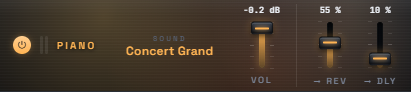
This layer plays real recordings, not synthesis — 8 velocity layers per note across all 88 keys, shaped by a 5-band tone EQ: grand, pop, felt, jazz, lo-fi tape.
A tour of every screen — know the panel before you download
Every image below is a screenshot of the real program, version 1.0.0 — not a mockup.
🎹 PLAY — shape the sound and play it
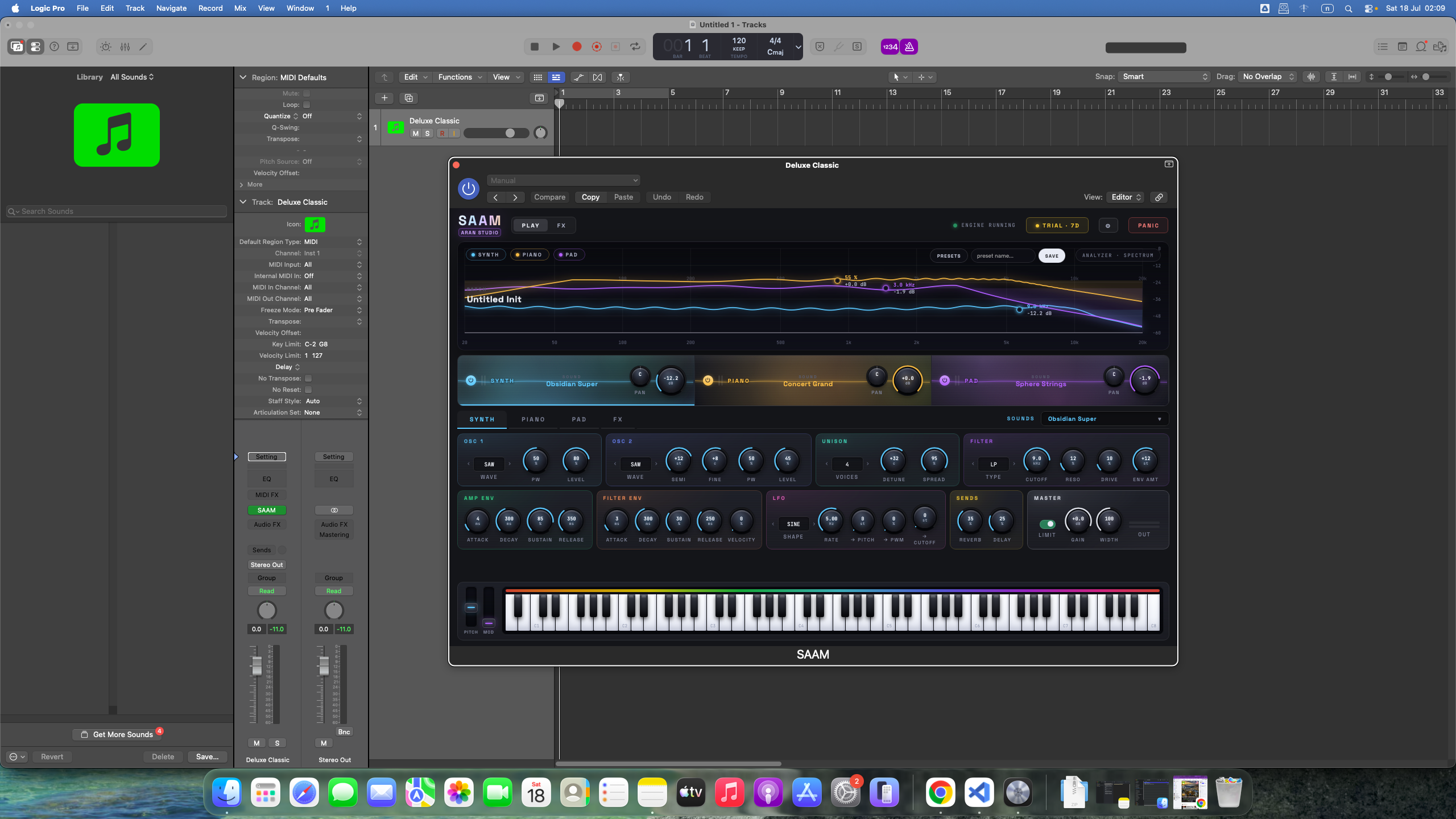
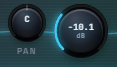
SAAM keeps everything on one screen instead of behind stacked windows: the analyser up top, the three-layer mixer in the middle, the sound-shaping panel for whichever layer you picked, and the keyboard with its wheels along the bottom.













🎵 72 sounds, sorted so you can find one fast
Every sound carries a one-line description of what it actually is, so you are not clicking through them blind. Choose one per layer and stack the three into something of your own.
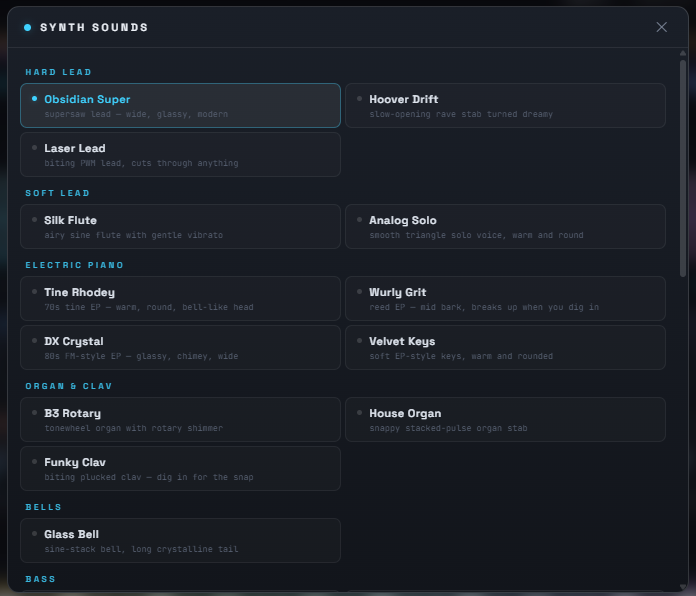
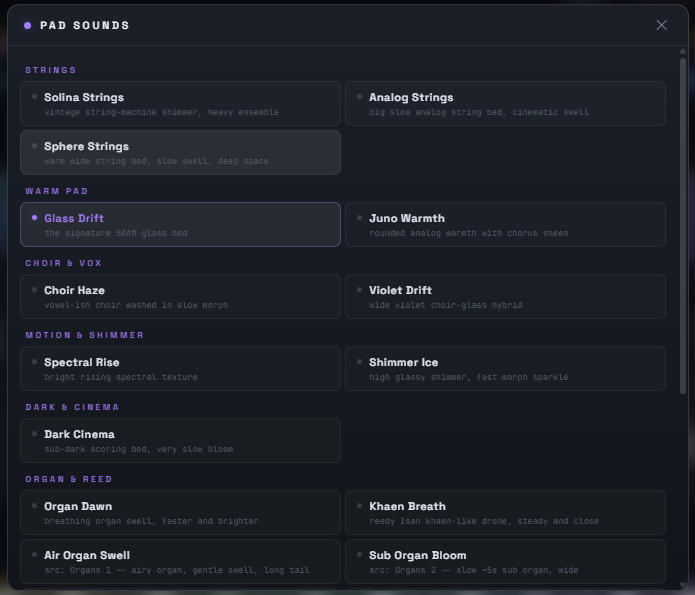
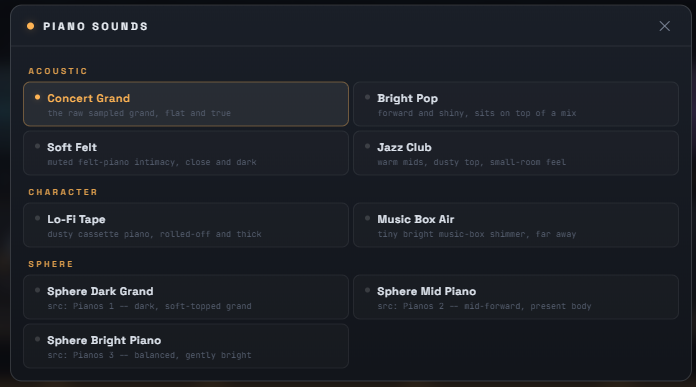
Worth saying plainly: the PIANO layer runs on one grand-piano sample set. All nine entries are tone characters built from the 5-band EQ and preset send levels — not nine different pianos. SYNTH and PAD, by contrast, synthesise every note, so each of their sounds really is a distinct patch.
🔬 The sound-shaping panel for each layer
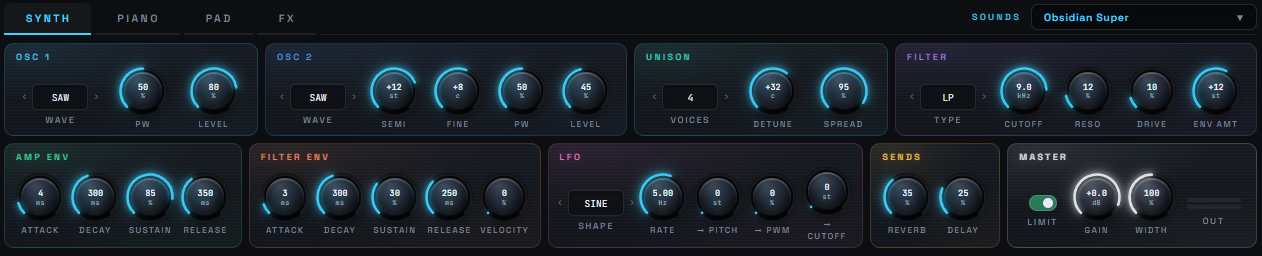
Load a factory sound and stop there, or tear it apart and rebuild it — every knob across these three panels is live, and moving it changes the sound immediately.
OSC 1 + OSC 2 offer four waveforms each (Saw / Pulse / Triangle / Sine), with OSC 2 tunable ±24 semitones and ±50 cents · UNISON stacks 1, 2 or 4 voices with Detune and stereo Spread · FILTER is LP / BP / HP with cutoff from 20 Hz to 20 kHz and a Drive knob for bite · AMP ENV and FILTER ENV are separate envelopes (the filter one has a Velocity amount, so playing harder opens it further) · LFO gives you three shapes (Sine / Triangle / S&H) routed to pitch, PWM and cutoff — all three at once if you want.
WAVETABLE gives you four tables (Glass / Choir / Organ / Spectral Saw) and an octave shift from −2 to +2 · MORPH is the heart of this layer: an 8-frame table where Position sets where you sit, Rate sets how fast it drifts and Depth sets how far it travels · each note's morph is deliberately out of step with the others, so a held chord shimmers instead of pulsing in lockstep · ENSEMBLE is a built-in chorus for that wide 70s string-machine size.

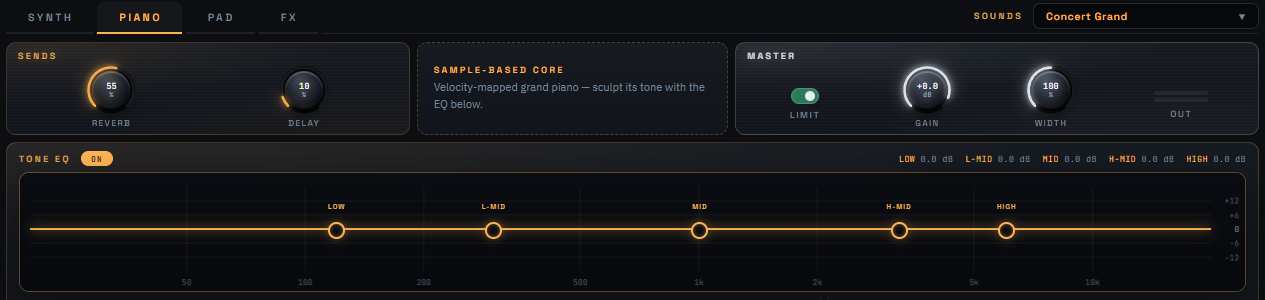
Nothing here is synthesised — this layer plays real piano recordings across all 88 keys (A0–C8), with 8 velocity layers per note. Play softer or harder and you get a genuinely different recording, not just a volume change. Sustain pedal supported. The 5-band TONE EQ (low shelf / low-mid / mid / high-mid / high shelf) has draggable nodes, ±18 dB of gain and a sweepable frequency on every band — it is the main tool for shaping this layer.
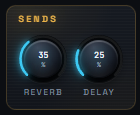
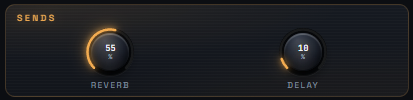
Reverb and Delay are one shared pair of buses that all three layers feed, each with its own send amount. So a bone-dry piano can sit next to a pad drowning in a huge room within the same preset — and everything still sounds like it is in one space.

🎛 FX — an effects rack you can see the wiring of
The FX page is not a list of knobs — it draws the whole signal path so you can see where the sound goes. Drag an effect chip from the library below into any slot.
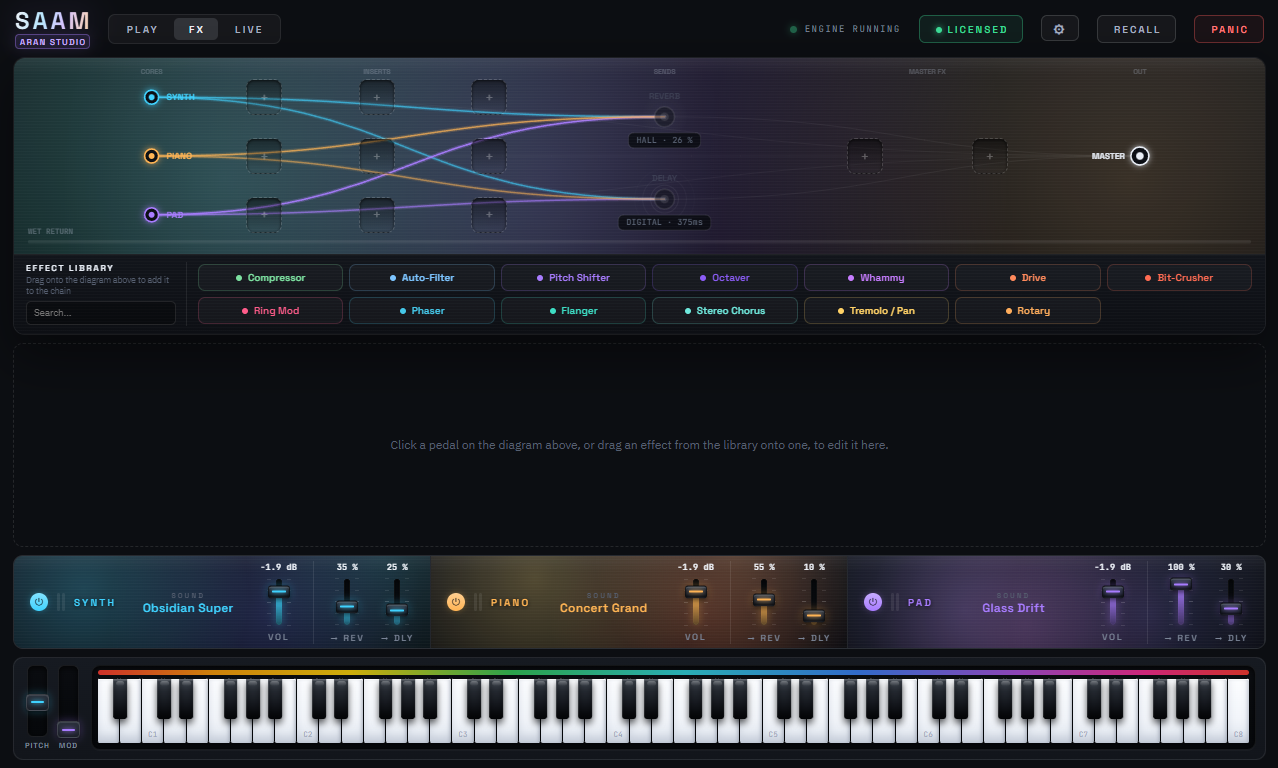



A layer's inserts run before its level and pan knobs, and before the point where the signal splits off to Reverb and Delay. Put a Drive on the SYNTH insert and the reverb hears the driven signal — exactly like patching an effect on a real mixer channel. The MASTER FX slots sit after the reverb and delay tails have returned, so a compressor there glues the whole mix, tails included.
🔴 LIVE — for playing on stage (standalone only)
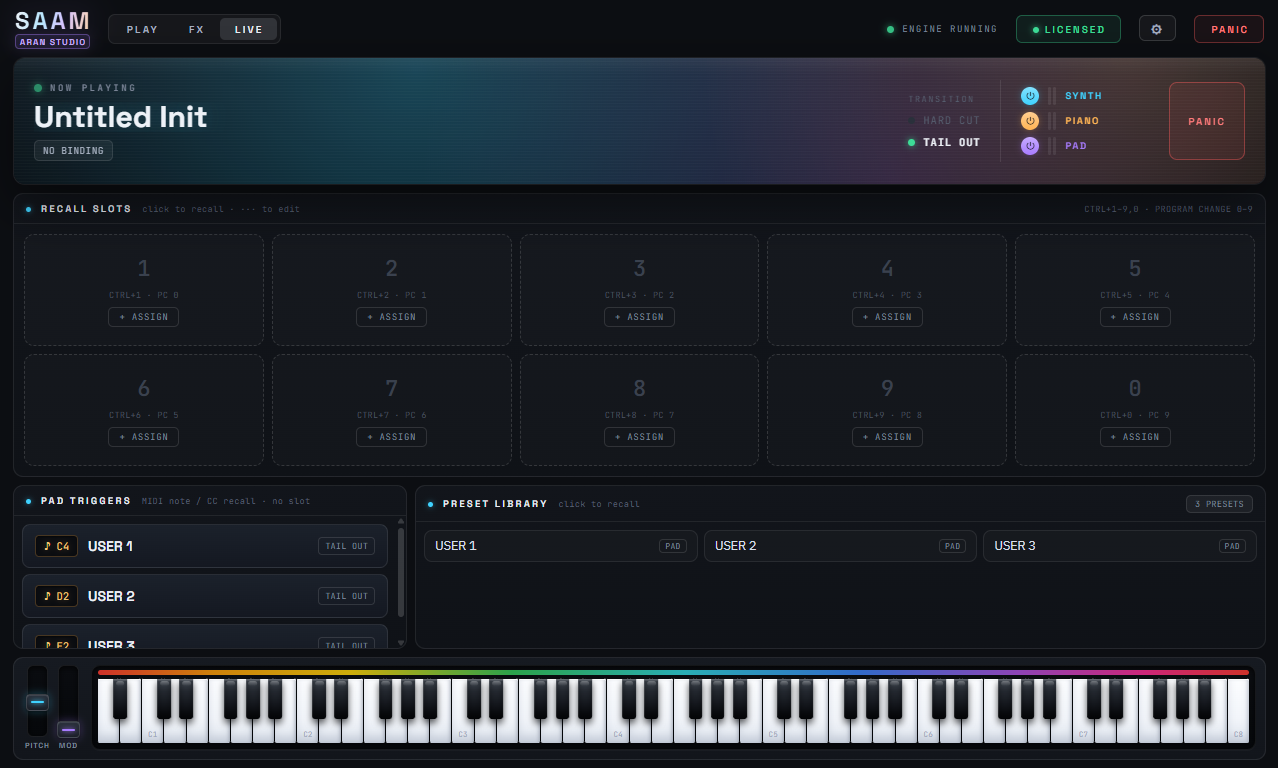
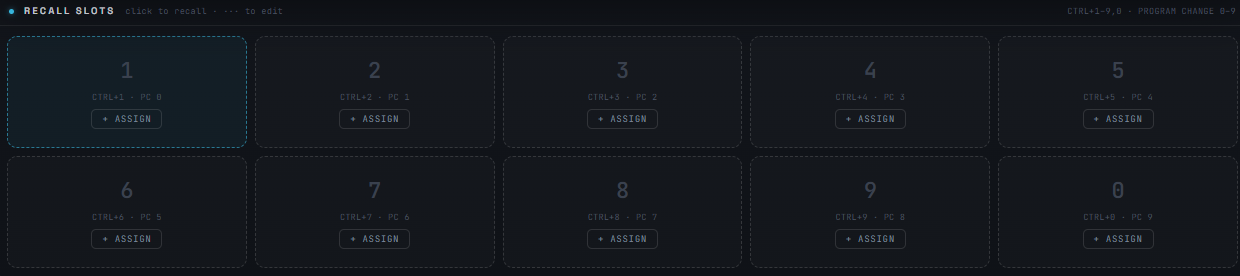
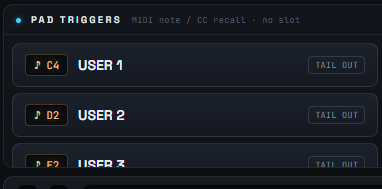
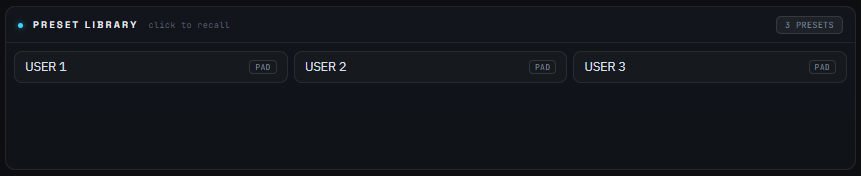
The LIVE page is built for the moment you are on stage with no time to hunt for a mouse — recall presets mid-song from a keyboard shortcut or a button on your controller.


🎛 MIDI Learn and presets
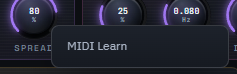
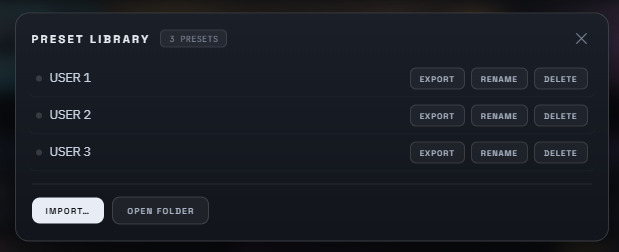
Set it once; it stays set. MIDI bindings are stored apart from presets, so they survive changing sounds, changing presets, closing a DAW project, and restarting the plugin — the way a hardware synth holds its CC map. Your controller is ready every time you open SAAM. (One limit worth knowing: if you run several SAAM instances in a DAW at once, an already-open instance picks up a new binding only after it reloads.)
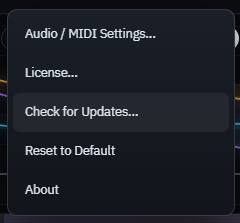
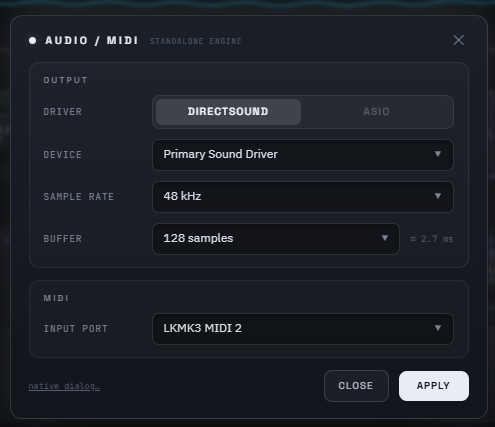
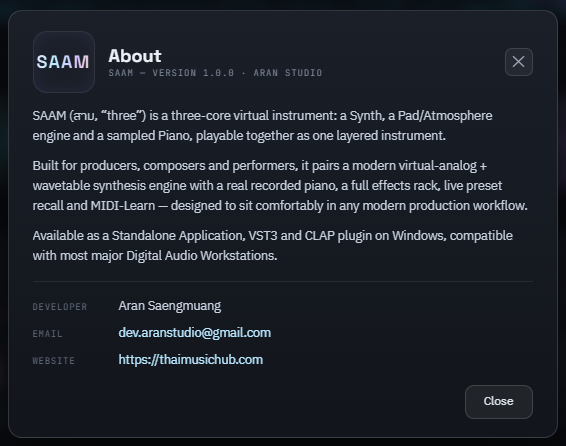
⚙ The settings menu
💻 Inside your DAW
SAAM runs a ~2.7 ms lookahead limiter to stop peaks from clipping, and reports that figure to your DAW so it can shift the track back into place. Your parts stay on the grid with everything else — and the figure never changes, whether the Limiter switch is on or off.
Hosted in a DAW, a synced delay reads the live project tempo and keeps up even if the BPM changes mid-song — which is why the Tempo knob is hidden there. In standalone you set it yourself, 40–300 BPM.
Tested on Windows (Studio One Pro) and macOS (Logic Pro) — Windows 10/11 gives you VST3/CLAP/Standalone, macOS 11+ (Apple Silicon & Intel) gives you VST3/AU/Standalone. Compatible with most DAWs; one installer per platform covers every format.
Frequently asked questions
💰 How much does it cost?
SAAM is ฿3,500 — pay once, own it for life, no monthly or yearly fee 💰 One license activates on 2 machines at once, and every new sound pack we release is a free download. Not sure yet? Take the free 7-day trial first — it is the full program, nothing cut out.
🎹 What is SAAM?
SAAM ("saam" is Thai for "three") is a 3-layer synthesizer from ARAN STUDIO 🎹 It puts a synth, a piano and a pad in one instrument — play them separately or stack them. They are not alternatives to each other: one key press can sound all three at once, and each layer has its own level like a mixer channel. Use it in your DAW, or open it as a standalone app.
🔊 How do the three layers differ?
Each layer makes sound a different way 🔊 • SYNTH — virtual-analog: two oscillators, unison and a filter. Leads, bass, plucks, keys and organs. • PAD — a morphing wavetable engine with a built-in ensemble. At home on long pads, strings, choirs and atmospheres. • PIANO — this one plays real samples, not synthesis, with a 5-band tone EQ. Run all three at once to stack them, or switch off the ones you are not using.
🎵 How many factory sounds are included?
It ships with 72 factory sounds 🎵 • SYNTH — 40: leads, bass, plucks, electric pianos, organs/clavs, bells, guitars and keys • PAD — 23: strings, warm pads, choirs, moving/shimmer textures, organs and air • PIANO — 9 tone characters: acoustic (grand/pop/felt/jazz) and character tones (lo-fi tape, music box) Each layer picks its own sound, and stacking them gives you something new. You can also build a sound from scratch and save unlimited presets. One honest note: the PIANO layer runs on a single piano sample set, so those 9 are EQ-shaped tone characters — not 9 different pianos.
🎚 What effects are included?
There are 13 effect types across 11 slots 🎚 • Three insert slots per layer (3 × 3 = 9) plus 2 on the master bus • The full list: Compressor, Drive, Auto-Filter, Stereo Chorus, Flanger, Phaser, Tremolo/Pan, Rotary, Bit-Crusher, Ring Mod, Pitch Shifter, Octaver, Whammy • On top of that, Reverb and Delay are shared send buses, separate from the insert slots, with a send amount per layer Drag an effect chip from the library into whichever slot you want.
💻 Which DAWs and systems are supported?
Both Windows and macOS are supported 💻 • Windows 10/11 (64-bit): Standalone / VST3 / CLAP • macOS 11+ (Apple Silicon & Intel): Standalone / VST3 / Audio Unit (AU) It works in any supported DAW — Logic Pro, Studio One, Cubase, Reaper, FL Studio, Bitwig, Ableton and so on — or run it standalone as its own app. (On macOS it uses AU instead of CLAP — there is no CLAP on Mac.) One license covers both systems, no second purchase.
📥 What does the free trial include?
Seven days free, with every feature unlocked 📥 No locked sounds, nothing cut, no noise burst over your audio — you download the same installer as the full version, and the 7 days start automatically on first launch with nothing to fill in. When it runs out the program does not slam shut: audio fades to silence after a short stretch of continuous play, and you cannot save new presets — but every preset you already saved stays put. Enter a license and everything works again exactly as before. (You need a free website account to download.)
🔑 How many machines can one license run on?
One license activates on 2 machines at once 🔑 (say, your studio desktop and the laptop you gig with). To activate: open SAAM → click the ⚙ icon → "Enter License…" → paste the key → hit ACTIVATE. You need internet for that first activation only; after that it runs offline forever. A license is tied to the machine (the machine code starts with SM-). Changing or wiping a computer and need to move it? Just message the admin. One payment of ฿3,500, yours for life.
🆕 Do new sound packs cost extra?
They are free, always 🆕 Buying SAAM entitles you to every sound pack we release from then on — no extra charge, no expiry. Grab them inside the app: ⚙ → "Check for Updates…" → pick a pack → download. New sounds appear in the SOUNDS menu straight away; no reinstall needed.
🎛 How well does it work with a MIDI controller?
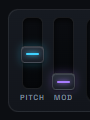
Very well 🎛 Right-click any knob → MIDI Learn → move a control on your hardware, and that control now drives the parameter in real time. The binding is remembered permanently, the way a hardware synth holds its CC map — and it works both standalone and hosted in a DAW. Pitch Bend and Mod Wheel are supported (Mod Wheel = vibrato, per the usual convention), and the on-screen wheels follow the real ones on your keyboard. The LIVE mode (recalling presets mid-song from 10 slots) is standalone only. That is deliberate: every key on SAAM is a key you can actually play, so binding one to a preset would swallow that note — and inside a DAW the host already handles preset switching for you.
⚠️ My system says the installer is unsafe / won’t open — what do I do? (Windows & macOS)
Nothing is wrong ⚠️ The installer is not code-signed yet, so your system warns about a program it does not recognise. This is routine for small developers and does not mean the file is bad. • Windows (SmartScreen): click "More info" → "Run anyway" • macOS (Gatekeeper): open Terminal, type xattr -cr (note the trailing space), drag the .pkg into the window and press Enter — or, if you would rather skip Terminal, double-click the .pkg and use System Settings → Privacy & Security → "Open Anyway".
💾 How do I order and receive my key?
It is straightforward 💾 1) Hit "Open an order" in this chat (you need a free website account first) 2) Scan the PromptPay QR code and transfer the amount 3) Upload your transfer slip on the order page, along with your machine code from the app (⚙ → Enter License… → copy the THIS MACHINE code) 4) The admin checks the slip and emails your license key, usually within 24 hours You can follow the status on the order page the whole time, and message the admin right there. A heads-up for buyers outside Thailand: payment is by Thai bank transfer / PromptPay — we do not take cards or PayPal yet. If that does not work for you, message the admin in this chat and we will sort something out.
Questions / buy
Ask about price, features or system requirements, request bank details, or track your order in the chat below — pick a topic or just type your question.